Multi-Model AI Video Generator: Skip the Workflow Rebuild
New AI video models keep launching. Here’s how to build a workflow that survives each release, so you can test new models without starting over.
A New Video Model Launches Every Few Weeks, So How Do You Avoid Rebuilding Your Workflow Each Time?
If you make AI video regularly, you know the pattern. You finally get your process running smoothly: the prompts are tuned, the reference images are organized, the team knows which tool to open. Then a new model is announced, the timeline fills with clips that look better than yours, and someone asks the question nobody wants to answer on a Tuesday afternoon: "Should we switch?"
Switching is rarely just switching. It means new accounts, new prompt habits, new quirks, and a few weeks of rework before things feel stable again. And just as you settle in, another model arrives.
The good news is that you do not have to rebuild every time. You have to build the workflow so that the model is one replaceable part instead of the foundation. This article explains how, and how a multi model ai video generator can make that approach easier to live with.
Why the churn is so painful
The frustration is not really about the models. New and better options are good news. The pain comes from how tightly most workflows are tied to one tool.
Think about where your know-how actually lives. Your prompts were written for one model's habits. Your reference images were uploaded to one platform. Your approved clips sit in one account. Your team's shortcuts, such as which settings give a clean result, are in people's heads. When the model changes, all of that has to be reconstructed.
There is also the evaluation problem. When a new model launches, how do you know whether it is better for your work, not just better in a demo? Demo clips are chosen to impress. Your projects have your characters, your products and your constraints. Without a way to test fairly, teams either switch on hype or stay put out of caution, and both can be expensive mistakes.
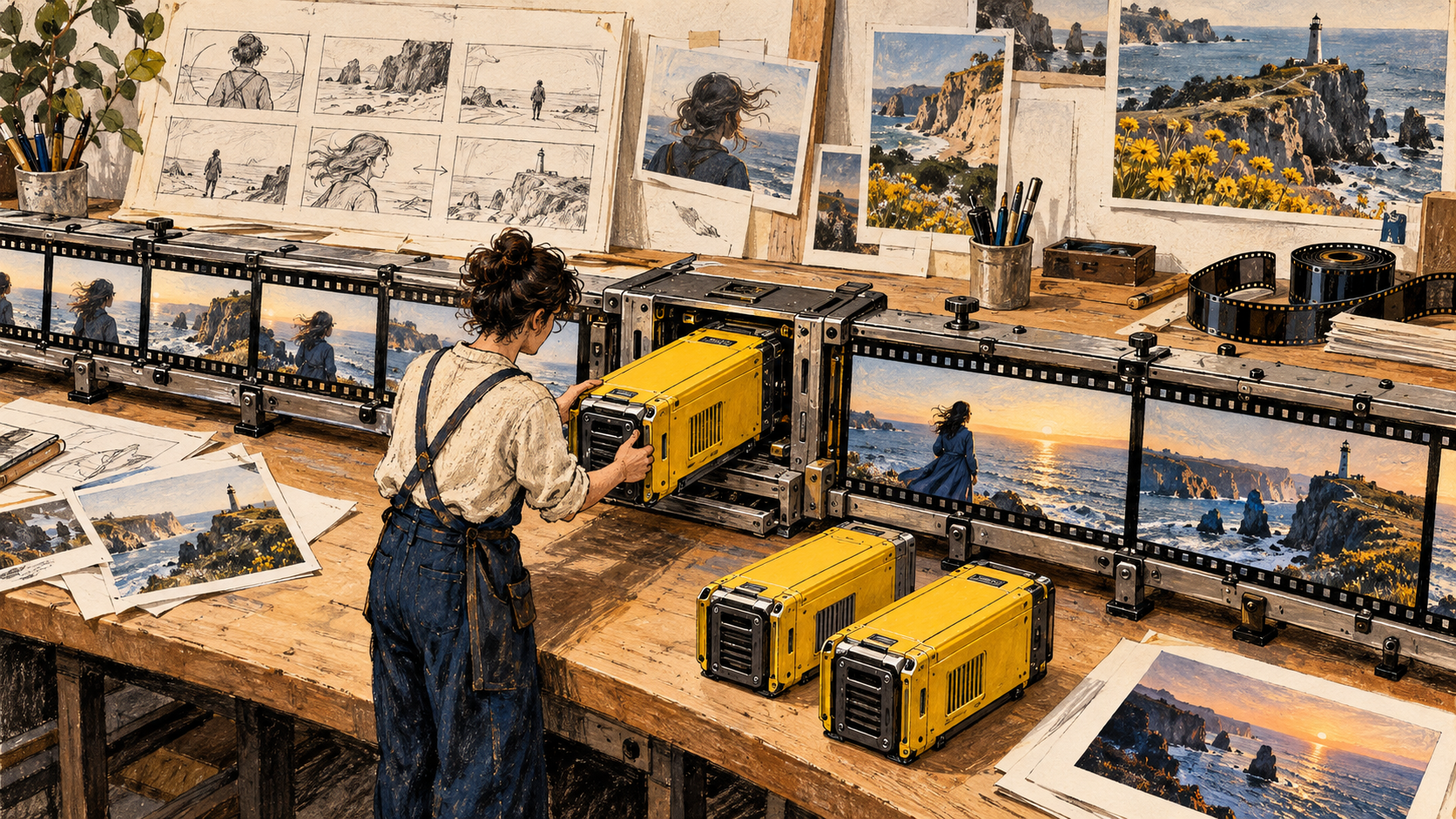
Separate the work from the model
The most useful idea is simple: keep the things that are yours separate from the thing that is rented. The model is rented. These are yours:
● Your creative briefs and shot lists
● Your reference library of characters, products, locations and brand material
● Your test prompts and the clips you consider "good"
● Your review criteria, meaning what a usable clip looks like for your client or channel
● Your export specs for each platform
If these live in a place you control, a new model becomes a new option to try against the same inputs. You are not starting a project. You are running a test.
Build a small test set
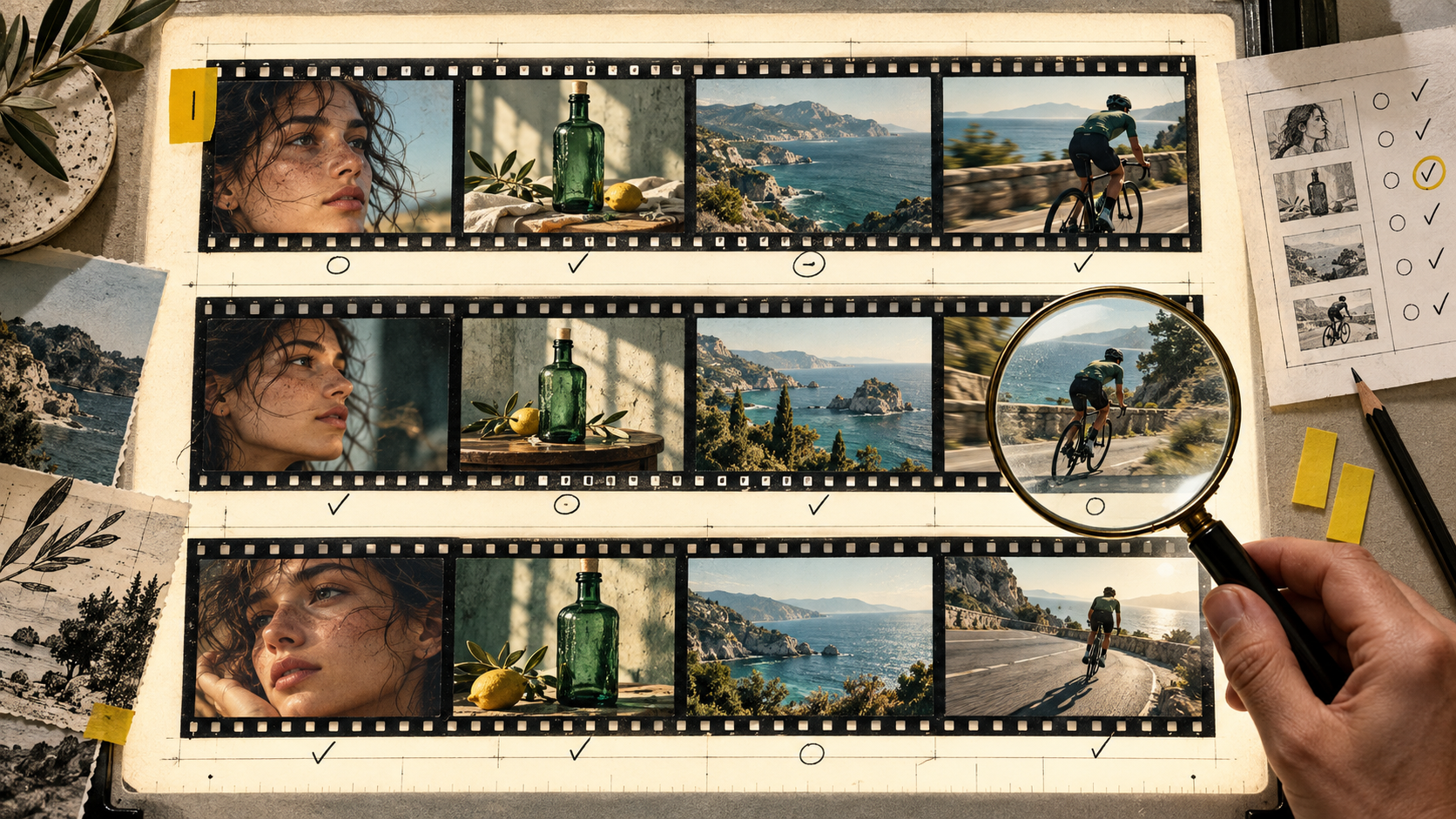
This is the single habit that saves the most time. Pick five to eight shots that represent your typical work. For example, a close-up of a face, a product on a table, a wide outdoor scene, a fast movement shot, a shot with text or a logo, and a transition. Write the brief for each one and save it.
When a new model appears, run the same set through it. Then compare against the clips you already approved. In an hour or two you will know whether the new model handles your kind of work better, worse or about the same. You will also see where it differs, which is more valuable than a simple yes or no. Maybe it is stronger on motion and weaker on faces. That tells you to use it for some shots, not all of them.
Keep the test set small and stable. If you change it every time, you lose the ability to compare.
Write prompts that travel
Prompts tuned to one model's quirks are the hardest thing to move. A few habits make them more portable.
Write a plain-language brief first. Describe the subject, the setting, the camera, the light and the mood in ordinary words. Then adapt it for each model, instead of writing only in a model-specific style.
Keep a short and a long version. Some models respond well to detailed instructions, others to a few clear lines. Having both ready speeds up testing.
Note what you learn. When you find that a certain phrase fixes a recurring issue in one model, write it down with the model's name. These notes become a shared team reference and survive staff changes.
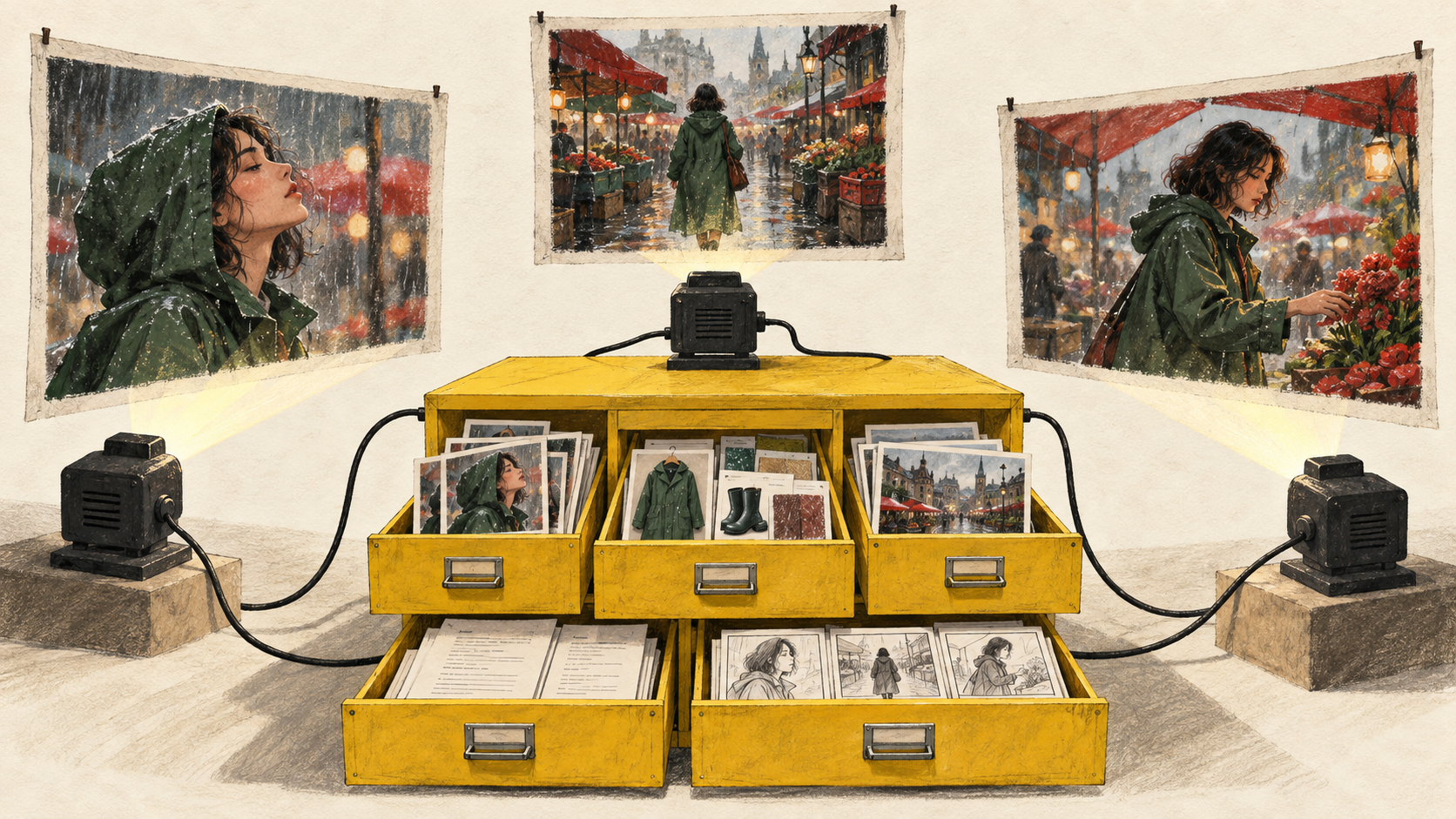
Keep references in one place
Reference images are another piece that tends to get trapped. If a character or product is uploaded separately to each tool, you will repeat the upload every time you try a new one, and small differences in crop or resolution will creep in.
A shared library solves this. Store the approved version of each character, product and brand element once, with clear names. Whatever model you use, the same references go in. That alone cuts a lot of the friction of trying something new, and it keeps outputs consistent across models.
Where a multi-model approach helps
A multi model ai video generator brings several video models into one workspace, so that trying a new model is a menu choice, not a new account and a fresh round of setup. Your brief, your references and your history stay put while the model underneath changes.
One example is LemonPeel (https://www.lemonpeel.ai/), which describes itself as an AI operating system for creative professionals, built around one canvas and many models. Its homepage says it adds frontier models as they ship, and its video list currently includes Seedance 2.5, Seedance 2 VIP, Gemini Omni Flash 1.1, Hailou 3 Max, Wan 3.0 and Kling 3. Several of its listed features fit the "do not rebuild" goal. The Asset Reference System stores and reuses assets across teams, and Brand Kit locks logos, type and palette across renders. Character Consistency is meant to keep one face across a sequence. Flows let you chain a series of steps once and reuse them, or run them as an API, and the site also lists an MCP and CLI option for connecting to other tools. Team Controls cover members, credits and creative control. For delivery, Reframe & Resize creates other aspect ratios from one master. The site also lists a Lemonpeel Agent in beta, described as briefing itself and returning with a cut. Treat any beta feature as something to test on a small job first.
The point is not that one platform solves everything. It is that a setup like this moves the cost of a model change from "rebuild the process" to "run the test set."
A simple routine for each new release
Here is a routine you can use every time a new model shows up, whatever tools you work in.
Wait for real results. Give it a few days. Early clips are curated, and rough edges show up as more people use the model.
Run your test set. Use the same briefs and references you used before. Do not tweak them to flatter the new model.
Compare side by side. Put the new clips next to your approved ones. Score them against your own review criteria: faces, motion, product accuracy, color, and how many tries it took to get a usable result.
Check practical limits. Look at clip length, resolution, supported aspect ratios, cost per clip and any usage terms that matter for commercial work.
Decide by shot type. You may adopt the new model for some shots and keep the old one for others. That is a perfectly good outcome.
Update your notes. Record what the model is good at and what prompt wording worked. Then move on.
The whole routine can take a couple of hours instead of a couple of weeks, which is the real gain.
Mistakes that make rebuilds worse
A few patterns turn a manageable change into a mess.
Switching everything at once. If you move an entire client project to a new model mid-stream, any problem affects the whole job. Pilot on one scene first.
Treating the newest model as automatically best. Newer often means different, not better for your needs. Judge on your test set.
Letting knowledge stay private. If the only person who knows the prompt tricks leaves, the process resets. Keep shared notes.
Ignoring cost. A model that gives slightly better clips but needs many more attempts can cost more overall. Track attempts, not just credits.
When you do not need any of this
If you make an occasional video and you are happy with the results, a formal test set is overkill. The routine above is most useful for people who produce video often, work with clients, or manage a team. It also matters less if your projects are short and one model already fits them well.
The short version
New video models will keep arriving, and that is a good thing. The workflow problem comes from tying your process to a single model. Keep your briefs, references, test prompts and review criteria in your own control, test each release against a small stable set, and decide by shot type. A multi model ai video generator can make that routine smoother by keeping everything in one workspace. But the habit matters more than the tool: treat models as replaceable parts, and you will stop dreading the next launch.
FAQs
1. How often should I switch to a new AI video model? There is no fixed schedule. A better approach is to test each notable release against a small, fixed set of your own shots and switch only where the results are clearly better for your work. Many people end up using different models for different shot types.
2. How do I compare a new video model fairly with my current one? Use the same briefs, the same reference images and the same review criteria for both. Compare faces, motion, product accuracy, color consistency and the number of attempts needed to get a usable clip, not just how good the best result looks.
3. Is a multi-model AI video generator worth it if I only use one model right now? It can be, if you expect to try new models or work across different kinds of shots. If you make occasional videos and one model already fits your needs, the extra flexibility may not matter yet. Check pricing, credit rules and usage terms before deciding.